Gateway API Setting
Overview
The Gateway API settings allow administrators to manage API keys for authenticating requests to the gateway API. This interface is now integrated into the Application Configuration page under Integration Settings.
Accessing the Settings
To access the Gateway API key settings:
- Log in to the MO Administrator portal.
- In the sidebar, click Settings to expand the menu.
- Select Application to navigate to the Application Configuration page.
- Scroll down to the Integration Settings section.
Interface Components
Integration Settings Section
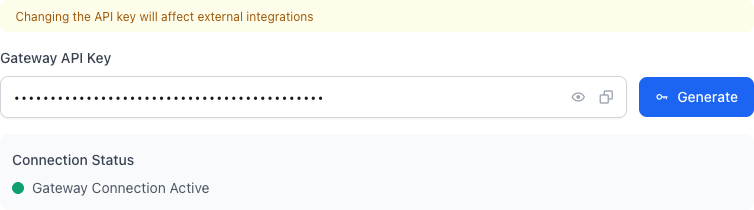
- Warning: A yellow banner states "Changing the API key will affect external integrations" to caution about the implications of modifying the key.
API Key Management
- Gateway API Key Field:
- Shows the current API key, initially masked for security (e.g., ********).
- Eye Icon (): Click to toggle visibility of the full key.
- Copy Icon (): Copies the full API key to the clipboard without revealing it.
- Generate Button: Blue button labeled "Generate" to create a new API key. Use this for key rotation or when no key exists.
- Upon generation, a success notification confirms the new key has been created.
Connection Status
- Below the key field, displays "Gateway Connection Active" in green if the key is valid and the connection is healthy.
- If inactive, it would show an error status.
Saving Changes
- After generating a new key, click Save Configuration at the bottom of the page to apply the changes.
- The configuration last updated timestamp and user are shown for audit purposes.